How to Create a Google Business Profile?
Showing up online in 2026 matters more than ever. That’s why I’m walking you through the simple steps to set up social media and business profiles that help your brand be visible, credible, and easy for clients to find. Over the last three weeks, we covered how to create a business Facebook page and how to set up an Instagram Business or Creator account, and how to set up a Linked In Profile. This week, we’re diving into how to create a Google Business Profile and how to use it intentionally for your brand.
First, some fast facts! Google Business Profile, was originally known as “Google Local” and went through four different name iterations before it was finally named Google Business Profile in November of 2021. Google Business profile is crucial for local SEO and attracting the right customers. It’s been a great free tool for businesses to control how they appear on Google Searches and in Maps applications. Which is why it is so important to have a working Google Business Profile.
While Google Business Profile is not technically a social media, it can be sort of used like one, in that you can post Business updates as long as you closely follow the posting guidelines. At the end of this blog, we’ll have a few tips and tricks for best practices for posting on Google Business Profiles.
Google Business profiles don’t take too long to create, so if you have some time today, make sure you get this SEO helper set up! It will only take you 15 minutes!
How to setup a Google Business Profile
How to setup a Google Business Profile
Start here:
The first step, assuming you have a Google Business email set up already (which is simply going to Google and signing up for an email address, and making sure you specify that the account is for a business), is to go to a new browser window and click on the button of clustered dots. Then click on the “Business Profile Manager” button that is at the top on the right.
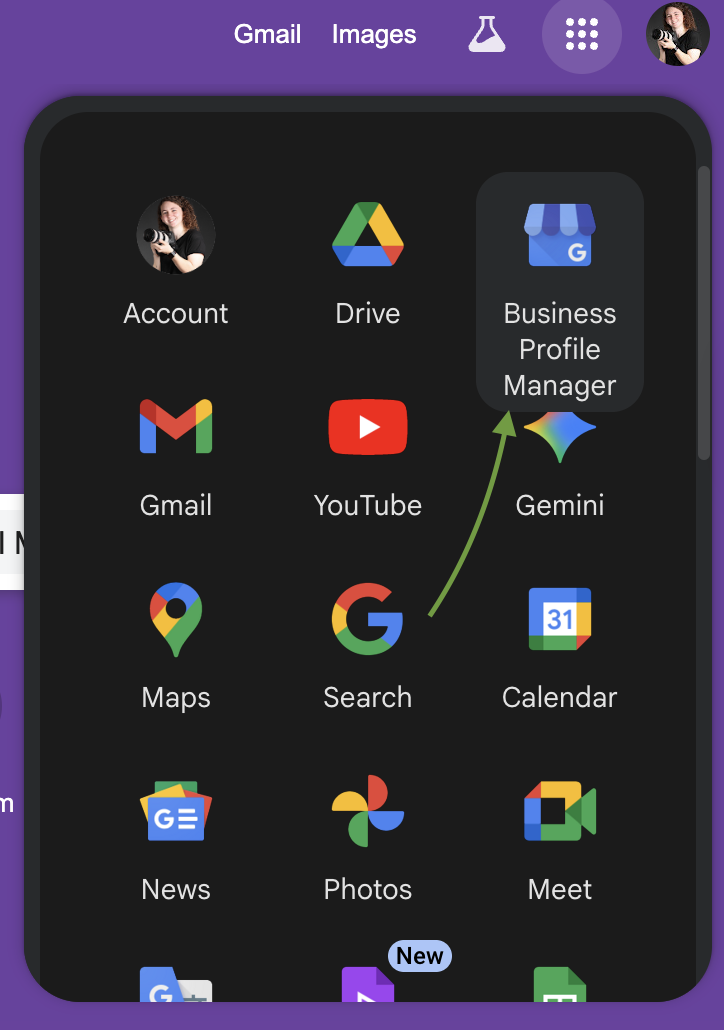
Click the cluster of nine dots . . .
Click the “Business Profile Manager”
Here is an inside look at what your “Home Page” for your Google Business Profile might look like:
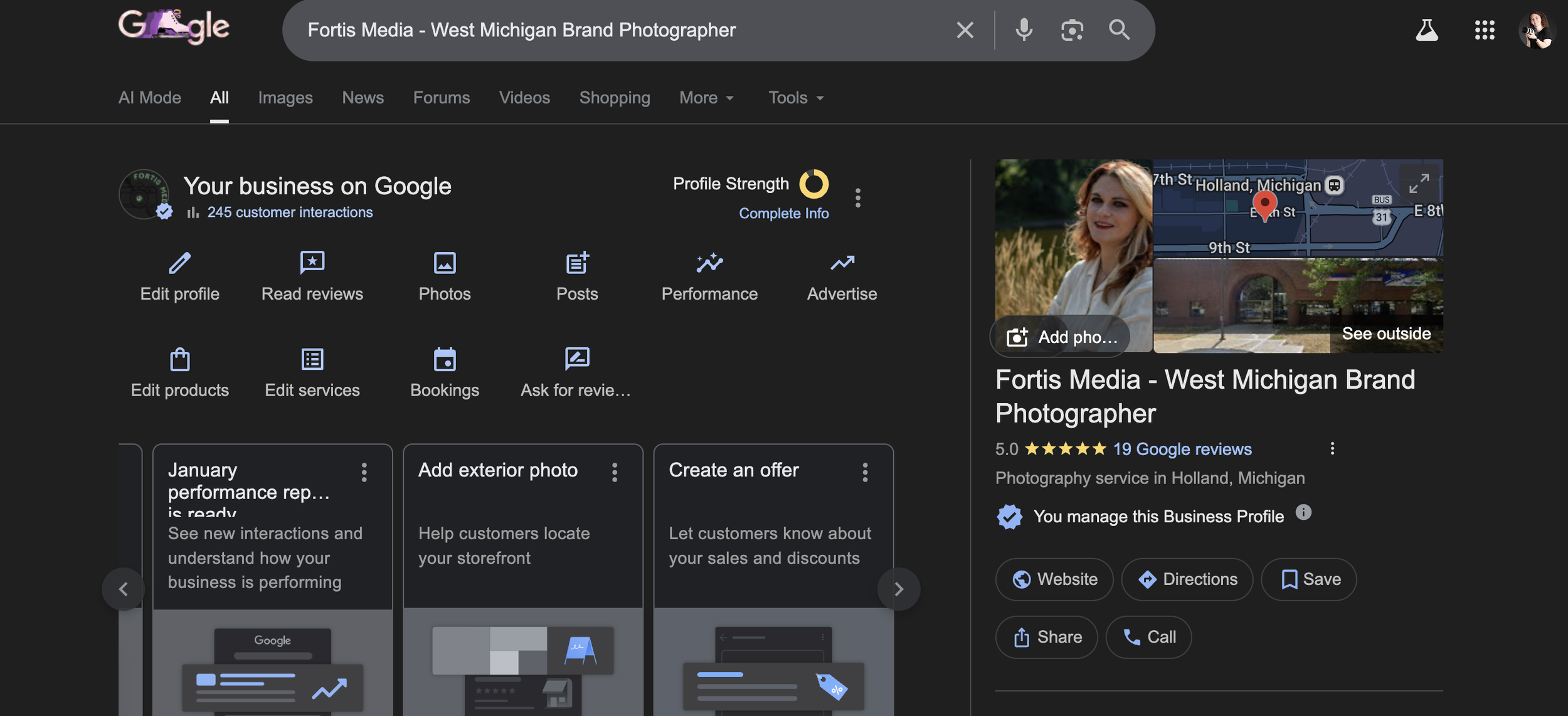
Let’s do a quick breakdown of where and what everything does in the top section:
”Edit Profile”
Let’s start with the obvious. If you look at the above image, under the “Your business on Google” section there is an “edit profile” button. When you click on that, there will be a pop up that shows your current business information. In that pop up you can choose to edit the details of your business. From your business name, business category (industry), a description, when you opened your business, your contact information and website, as well as your business social media profiles, your location and service areas, your operating hours, as well as some other specific things that your business might have. This information allows Google to organize and index your business easier, so that it shows your business to the right people.
”Read Reviews”
This section allows you to Read the reviews that your clients and customers have left for you. This section also allows you to easily respond to the reviews and thank your customers for ordering your products or using your services. Replying to your customer reviews also shows that your business is still active!
”Photos” and “Posts”
These two sections are as you would expect. When you click the photos section you can add photos of your business, photos of your product or photos of your services. This is a great spot to put the brand photos that we capture together! 😉 We have specific tip about photos towards the end of this blog!
Posts allows you to add “updates” to your business. This is sort of like posting on social media but for Google, except there are a lot more rules that you need to make sure to follow!
”Performance”
The performance section is like your “analytics” in Instagram and Facebook. It allows you to view how many profile interactions your business had, how many calls, how many chat & website clicks you got, how many bookings, and how many people ask for directions to your business location in a month. This is great information to look through if you want to track more of where your bookings/buyers are coming from.
”Advertise”
Your Advertise section is where you can work on creating PAID ads that get pushed to the public. This is not a necessity, but can be helpful if you want more visibility from Google.
”Edit Products” and “Edit Services”
This is as you would expect as well. This is where you can add links, photos, and descriptions to products and services you sell in your business. This is great if you want to re-direct more people to your website!
”Bookings” and “Ask for Reviews”
The bookings section is where you can add a direct link to book your services! This is extremely useful if all you offer is particular services. This allows you to directly have new clients or customers get in touch with you and see what you offer. With the “Ask for Reviews” section you can get a direct link that you can then send to your past clients to get new reviews. Whenever you get a new review in your business, your business gets pushed up to the top of searches. But keep in mind that you have to keep getting good reviews for this to keep happening.
Now let’s say that you are scrolling down on your Google Business Profile home page. You are going to see some other sections that can be edited, but you will also see a section that shows what pops up for others when they Google search your business. It might look something like this:
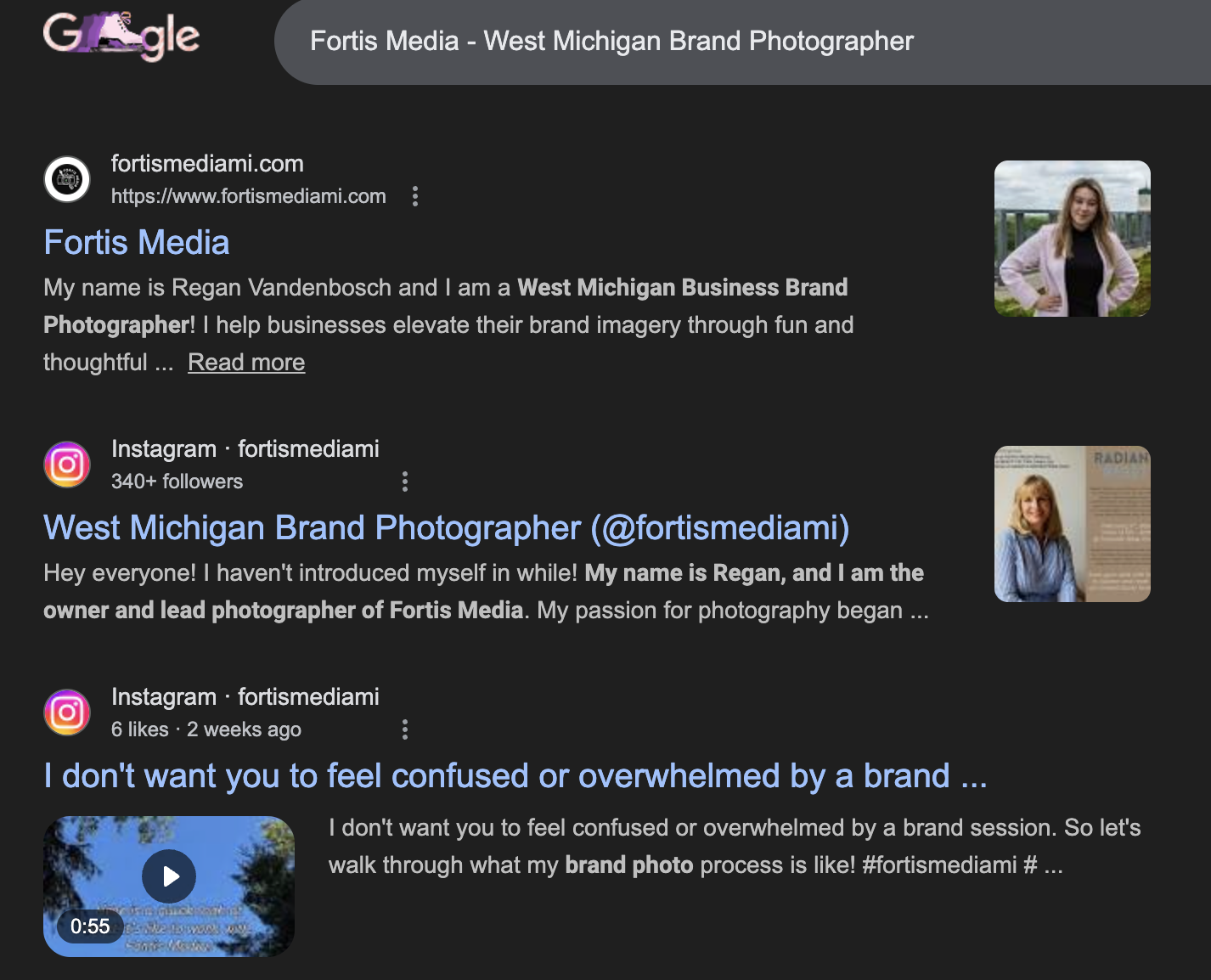
Google Searching . . .
See what others see when they search your business! This section is a great way to see what content of yours is currently being pushed to your ideal client.
Now to the best part. Top tips for posting updates to your Google Business Profile.
1. If you guessed that number 1 would be Consistency, you would be correct! Consistency, as is the case in Social Media too, is the key to higher booking, and viewer rates. I do my best to really ingrain this in my clients mindsets too. Especially if they are a part of my business photo membership. Consistency, over anything, pays off in the long run. Social media and posting to accounts like Google business, require constant upkeep and consistency. It is recommended that you post at least once a week to your Google Business profile.
2. Use high quality visuals. I promise I am not just saying this because I am a brand photographer. Like any social media or platform that you post content too, having visuals that actually show you and your team, the legitimate products or services that you offer, and the processes behind the services and products is what will actually perform well on Google. Those free stock images that you get online, will not work well (ie. create connections) on your social media, so why should you expect that they would work well on your Google Business profile?
3. Keep things Short and Actionable + Use CTA Buttons. Google business profile posts are limited to 1,500 characters. So it is crucial that you keep things short, sweet, to the point, with no extra fluff. Use the built in CTA (Call to Action) buttons.
4. Avoid Spammy Content. Speaking of CTA buttons . . . I myself have been flagged for this before because I was unaware that you can’t do this. But because Google has built in Call to action buttons, you don’t need to add an email or phone number to your post. I had one of my posts get rejected for this reason one time. So be sure that you avoid adding your phone number or your email in the content, don’t use hashtags, and avoid use an excessive amount of emoji’s. YES, Google will reject your post if it appears spammy!
5. Use the Different Post Types! This one is important on Google Business Profile, just as it is on Instagram! There are three different posting types on Google Business. “What’s New”, “Offers”, and “Events”. Make sure that you use the “What’s New” option when you have updates to your business, “Offers” when you have new promotions or sales, and “events” when your business is trying to promote an event your hosting!
BONUS TIPS:
1. On Google it’s typically best to post during the weekdays between 8 AM - 10 AM. Avoid posting on major holidays and the weekends.
2. Just like Meta Business, you can also schedule content on your Google Business Profile! This makes it easier to batch and post content so that you don’t have to be constantly glued to your phone 25/8.
If you found this blog article helpful, please share it with another business owner friend that might need to read it! We would so appreciate you sharing it with them!
In Summary . . .
This blog walks you through why a Google Business Profile is a must have for showing up online and how to set one up with confidence. You’ll learn what each section of your profile does, how it supports local SEO, and how to use posts, photos, and reviews intentionally to increase visibility and trust. It wraps up with practical tips to help you stay consistent, avoid common mistakes, and make Google work for your business.
join the email newsletter to get these posts delivered straight to your inbox every week